By now you should be itching to start Building. If you followed the steps
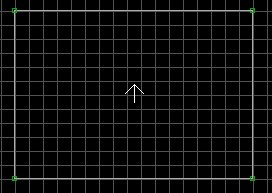
outlined in Getting Started you should be in 2d mode, with a red crosshair,
white arrow, and lots of grid lines. Move the crosshair to the edges of the
screen and all around the border. You'll notice the space you can move
the crosshair is not very large. This is because the white arrow is where
the screen border is drawn around. To move the white arrow to a new location,
hold down the Right-mouse button and drag the arrow to a new spot. This is
how you can move to new spots of the map. Use the [A] and [Z] keys to
zoom in and out on the map.
With the crosshair in the desired position, press the Spacebar to begin
drawing your first sector. A vertice will plant itself on the grid
coordinates where the crosshair is located. Move the crosshair to any other
location. You'll notice a line extending from the first vertice to your
crosshair will appear. You are now in Line Drawing Mode. Move the crosshair
to the next location and hit the Spacebar again. Another vertice will plant
itself. Move in a square-like fashion and insert two more vertices. After
you have four vertices planted, you need to close the sector by moving the crosshair
over the very first point again and hitting the Spacebar. This will automatically
turn off Line Drawing Mode, and close the sector. If the sector was completed
successfully, the line coming off the crosshair will disappear.
Changing tiles
Your very first sector is now complete! Let's move to 3d mode and change
some of the tiles. In order to change to 3d mode, the white arrow must
be in valid player space. Valid player space is inside any sector. Move
the crosshair inside the sector you just created and click the Right-mouse
button to move the white arrow to that spot. Hit the keypad ENTER key
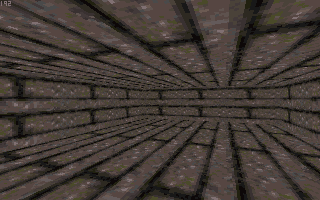
to switch over to 3d mode. You should be in a square, bland room with
that very ugly olive-green floorboard all over the place.
Point the white crosshair at one of the walls and hit the [V] key. This will
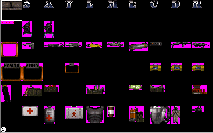
bring you into the tile summary screen of your map. You'll only see a
single tile at this screen, because it's the only tile you're using. Hit
[V] again to jump to the entire tile display.
Use the arrow keys of the keypad to select a tile. Notice that as you
move around between tiles, the lower left-hand corner will display the
tile number, and the lower right-hand corner will display the tile name, if
there is one. You can use the PgUp and PgDn keys here to jump a screen at a
time. Pick a nice looking tile and hit the regular ENTER key to select
it. If you choose not to select a tile, use the [ESC] key to back out.
Once you select a tile, it will bring you back into 3d mode. A very handy
feature with Build is the ability to copy tiles. Point at the wall you
just changed tiles for and hit the [TAB] key. The tile for that wall will
be copied into the Build "clipboard". Point at another wall, then hit
the regular ENTER key. Voila, that wall will change tiles. Very neat :)
Backtracking in Line Draw Mode
If you make a mistake while in Line Draw Mode and want to backtrack a line or
more, then simply hit the Backspace key. You'll see the last placed
point erased and the line it made removed. You can completely undo all of
your lines and cancel Line Draw Mode by backspacing all the way back to your
first point.
Single-Sided and Double-Sided Walls
You'll notice, upon returning to 2D mode, that your sector is made of white
lines. These white lines are single-sided walls. A single-sided wall only
has player space on one side; the other side is "null" and can never be
occupied by the player or anything else. Your new sector has player space
on the inside, but not on the outside.
Double-sided walls are red in 2D mode and they have player space on both
sides. Double-sided lines always separate two sectors.
Placing the Player's Start Position (IMPORTANT)
It is important to make sure that the player's start position, indicated
by the brown arrow in 2D mode is within a sector (user space.) The game
will behave very strangely if it tries to start the player in null space.
To place the player's start position, move the white arrow to where you
would like it to be, and then hit the ScrollLock key. The player's
starting direction will be the same as the brown arrow's.
Quitting Build- Saving, Loading, and Renaming Levels
Before we get too far, you should learn how to save your map so that you can
test it. It's always a good idea to make frequent saves, and test
your level out before Building too much. Hitting [ESC] when in 2D mode
will bring up the Exit Menu, and you'll be prompted with the File Menu.
Options here are (N)ew, (L)oad, (S)ave, save (A)s,
and (Q)uit.
The New option will start with a completely new map. Be careful if you hit (Y)es
after it warns you, because any changes you've made to the current map will
be lost. The same holds true for (L)oad; it will load in another map,
but any changes you've made to the current map will be lost.
The (S)ave option will save your current map. The save (A)s option will save
as a different name. Let's do save (A)s, as we haven't named our map
yet. Type in a good name for your map (no .MAP extension needed) and hit
ENTER. The next time you run Build, you can specify that map when launching
the program... ie Build mymap.
The (Q)uit option obviously will end your session. You will then
be prompted if you'd like to save your changes. Hit (Y)es or (N)o.



 , All Rights reserved.
 , All Rights reserved.