The Build program is located on your Duke3d CD. Change to the goodies\build
directory, and copy all of the files (using DOS, not Windows) located there to
your hard drive, where the game was installed.
copy d:\goodies\build\*.* c:\duke3d
Run Build.exe and you're in! If you have problems with starting Build, there
is a setup program which will allow you to change video settings (and other
things, but video is the only thing that actually is useful.) Run Bsetup.exe
if you have problems getting into Build. From Bsetup, select Graphics Mode
from the main menu. You will see a listing of supported video modes. The
VESA 1.2/2.0 mode is for video boards which support VESA standards. If you
have problems with this mode, try changing to "Screen Buffer mode - Standard VGA
at 320x200." The settings you make in Bsetup will apply to EditArt as well,
so if you have problems in EditArt, return to Bsetup and try changing to
the generic video driver.
I'm in! What do I do now?
The mouse is your life and death with Build. You can't do anything except
look around without a mouse. When Build first starts, it will load the
default map, or NEWBOARD.MAP. If this map does not exist (as it won't the
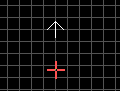
very first time you run Build), you will start out in 2d mode with a little
white arrow, a red cursor, and lots of grid lines. The red cursor is your
mouse position. The white arrow is your "virtual" location when you switch
to 3d mode. More on 2d vs 3d mode coming up. The grid is for lining up the
sprites, walls, sectors, etc. of your level.
If NEWBOARD.MAP had existed, you would have started out in 3d mode. 3d mode
is an incredibly powerful tool for Building your level. If you had started
in 3d mode, you would have a white cursor while in a game-type mode. To
switch between 3d and 2d mode, use the keypad ENTER key. Switch to 2d mode
if you're not already, and hit [ESC]. This will bring up the File and Exit
menu. Your options are [N]ew, [L]oad, [S]ave, save [A]s, and [Q]uit. Hit
[N] to start a new map, and hit [Y] when it asks "Are you sure you want to
start a new map?" You should now have a completely clean slate.
Level Basics: Sectors, Walls, Vertices, and Sprites
Your level will be made of a few basic elements: sectors, walls, vertices, and
sprites. Sectors are like rooms, hallways, and outside areas. Sectors are
made up of a floor, a ceiling, and at least three walls. Walls are just that -
wall space between the floor and the ceiling of a sector. The two points on
either side of the wall, as seen in 2d mode, are its vertices.
Sprites are used for bad guys, goodies, sector effectors, etc. They can
be made to lay flat on walls, floors, or ceilings. These flattened sprites,
called "rotated" sprites, can be used for switches and decorations.
Two Editing Modes: 2D and 3D
There are two modes with which to make your cool Duke levels: 2D and 3D.
2D mode is a two-dimensional view of your level, much like a blueprint layout.
Making your level in this mode is like drawing on grid paper. 3D mode is
a three-dimensional world, nearly identical to the game itself. You can use
the arrow keys to move around, the A/Z keys to fly up or down, and CTRL-A and
CTRL-Z to look up and down. The only difference between this mode and the
actual game is that nothing works; switches, doors, aliens, etc. are all
stationary and non-functional.
To switch between the two modes, hit the ENTER key on the numeric
keypad (*not* the Enter key near all the regular keys.) When in 2D mode,
your current position within the level is indicated by the white arrow. When
switching to 3D mode, the white arrow must be in valid player space. The
brown arrow is the player's starting position when the game begins.
What's the difference between 2d and 3d mode?
2d mode is where you will create, move, delete, insert, and join Sectors and
Vertices. None of these things can be done in 3d mode. You'll use the
left-mouse button to grab things (vertices and sprites) and move them around
the map. Use the right-mouse button to move your current position around
the map.
You'll notice in 2d mode that the closest sprite, the closest vertex, and the
closest wall to the crosshair will blink. This indicates that these
particular objects will be acted upon by you. This will be more important
later when you start using high and low tags, and hit scan/blocking. For
now, thought, you need to know that the blinking vertex is the one you'll
grab if the mouse's left button is used.
3d mode is where you will change tiles (artwork), shading, and alter sector
heights. None of these things can be done in 2d mode. If you want to make
a table in the middle of the room, you would create the sector in 2d mode,
then raise the floor in 3d mode.
There are things you can do in both modes, such as insert/delete sprites
(individual pieces of artwork, aliens, or actors,) and change hitags/lotags.
Which mode you use to do these things is simply a matter of preference. You
will find that there are certain spots where you can't insert a sprite within
3d mode, but can in 2d mode, and vice-versa. This is why they allowed this
function in both modes.
2D Grid and Resizing the Grid
There are seven gradation to the 2D mode's grid. The first six will
actually display a grid of six varying sizes, and a seventh with no grid at
all. The six grid sizes give you varying control and accuracy on sector
wall and sprite placement. Detailed work on very small spaces or tight
sprite locations can be done on the sixth, finest grid size, while more
grand, room-sized leveling can be done with the larger grid sizes. Hit the
[G] key to cycle through the different grid sizes.
2D Grid Locking Feature
When drawing walls or placing sprites in 2D mode, you'll notice that wall
vertices and sprites are placed exactly on grid cross lines. This is very
useful because almost everything you Build will be rectilinear (square-shaped.)
You will also want to keep area symmetical and proportioned with respect to
sector sizes for rooms, doors, windows, etc.
To turn grid-locking on or off, hit the [L] key. Be careful when
editing without grid-lock on. If you make a sector without having the
vertices planted exactly on grid cross-lines, you'll never be able to
use those vertices for any other sector. You'd have to move them to a grid
cross-line, and then you could use them for other sectors.
2D Zooming In and Out
You can zoom in and out within 2D mode by using the [A] key to zoom in,
and the [Z] key to zoom out. These two keys, along with grid resizing,
can greatly help when trying to develop differently sized areas of your maps.
2
3D Editing
The 3D mode of editing is used to do most of your level's designing. This
mode resembles the actual game and therefore is more intuitive. You will do
your tile selections, shading, floor/ceiling elevations, sloping, etc. in 3D
mode.
Holding down the left mouse key after pointing at a sprite, wall, floor, or
ceiling in 3D mode will hold it as selected, even if the object moves beyond
the mouse's crosshair during an editing operation.
There are three ways to control your altitude in 3D mode: Game Mode, Height
Lock Mode, and Float Mode. Game Mode is just like the game; you will be
affected by gravity. Height Lock Mode will let you move around the level
with no gravityand always be at the same height above the current floor.
Float mode will let you hover without gravity and your height will not be
affected by the floor's height below. Use the CapsLock key to cycle
through the three modes, then use [A] and [Z] to change your
altitude.


 , All Rights reserved.
 , All Rights reserved.