Switch Doors

|
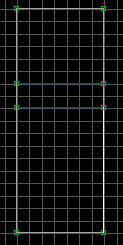
Start out making three sectors as in the image. The middle sector will
be our door, and the other two simply rooms.
|
|
|
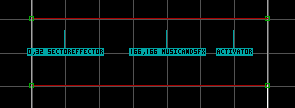
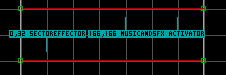
Insert a SectorEffector, Activator, and MusicAndSFX sprite within the
middle, door sector. Change the SectorEffector lotag to 32.
Set the MusicAndSFX lotag and hitag to 166, or whichever
door sound you prefer. Leave the Activator tags as is for now.
|
|
|
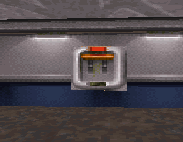
Switch to 3d mode and place a switch sprite on the wall. It's easier
to place sprites in 3d mode and make them fixated in a certain plane. If
you place a sprite in 2d mode, by default the sprite will follow you as
you walk around it. Obviously, this won't work for our switch. You can
press [R] on the sprite in 3d mode to fixate it, but if you insert the sprite
in 3d mode while first pointing at the wall, it will start fixated :).
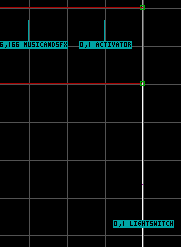
Change the switch lotag to a unique switch number (I'll use 1 in this
case). Give that same switch lotag number to the activator lotag.
|
|
Lower the ceiling of your door sector so that you can change the door tiles.
We're not going to lower the ceiling of the door down to the floor, as the
SE-32 sprite will allow us to start the sector ceiling at the same height
of the SE sprite. Change the angle of the SE-32 to point downwards, and
make sure the sprite is all the way on the floor (use [CTRL]-[PgDn] in 3d
mode to ensure this.) With the SE-32 pointing downwards, the ceiling will
start at the SE height. It's much easier editing tiles, moving sprites, and
the like if the door is open in Build :)
|
|
 , All Rights reserved.