Copying Sectors

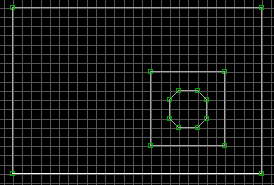
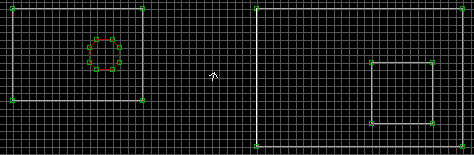
Start out making two separate sectors. In the left-most sector, create a
little circular sector that is valid player space; this will be your source
sector. In the right-most sector, create a void-space area that is larger
than the circular sector in your source sector.
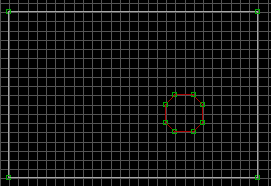
Now make a copy of the small circular sector. Do this by pointing your mouse
crosshair a little bit above and to the left of the circular sector and
pressing right-alt. Keep the right-alt button down, and drag your
mouse down and across the circular sector. You'll see a green-bordered
box form. Once you've totally enclosed the circular sector within
the green box, let go of the right-alt button. Now that entire sector will
begin to flash green. Point your mouse crosshair anywhere in the middle of
the highlighted sector. Be careful in the next few steps and avoid moving
the sector. While holding the mouse in a constant position, press and hold
the left-mouse button.
What we've done here is highlight the sector
and any sprites within it for moving. But there's a handy tool built into
the Build engine, and that's the ability to copy. While keeping the left-mouse
button down and not moving the sector at all, press insert once, but do
not let go of the left-mouse button. Be sure the sector lines up with its
original coordinates. If you play around with this at all on a test map,
you'll see as you move that sector out before pressing insert, white lines
will replace the original red ones. Don't worry if that happens to you,
just move it back in place and you'll be fine. Now that you've copied the
sector into its original location (sounds weird, doesn't it,) you can safely
move it around for placement elsewhere. So we'll move it to our void-space
area in the right-most sector. You can now do one of two things here. Either
a) drop the sector by letting go of the left-mouse button, or b) press insert again
to make another copy. We're only going to make a single copy, so let's drop
the sector in that void space area. Press the right-alt button again to
disengage the highlight, and we've finished the move.
We must now meld that copied sector into its bigger, surrounding sector.
This is what we created that void-space sector for. If you tried to just
plop down that copy in the middle of the existing sector, you'd get many,
many strange effects, and probably lock the game. It's a cardinal sin in
Build to have one sector cross red lines with another, and the same holds
true for copying sectors anyplace other than their origin. You can take
a copied sector and place it down in void space anywhere, so we're safe
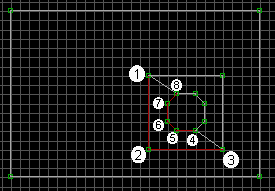
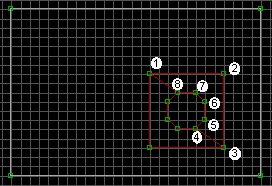
with our little void-island. Begin drawing a new sector, starting
with point number 1 in the following image. Hit every point in sequence
through 8, stopping back at 1. It is imperative that each and every vertice &
line of our copied sector is joined with the new sectors. We're going to
create two of them.
|
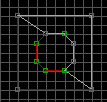
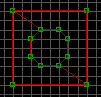
Create another new sector for the remaining void area.
|
|
|
All lines should now be red, indicating we've successfully removed any void
space. You probably don't want, and really don't need, those two temporary
sectors we used to take up the void space. Let's join them with the parent
sector. Point the mouse crosshair anywhere inside the biggest,
right-most sector. Press 'J' once. Make sure you see at the bottom
of your screen (in the action bar) the line reading "Join sector - press J
again on sector to join with" before going any further. If you don't see
this, then it didn't register you hitting the 'J' key. Press 'J' on one of
the two temporary sectors, and it will merge with the parent. Follow the
same procedure for the other temporary sector.
Notes on Joining sectors: Whichever sector you hit 'J' on first will retain
its floor/ceiling heights, shading, tiles, etc. The other sector will lose
all of those attributes, and basically disappear. It's very upsetting to
accidentally join a junk sector with a good sector. You can only join
sectors that share at minimum one red line, or if the sector is within
another. Avoid at all costs joining sectors that overlap other
sectors. If you point your crosshair in any area which could be two or
more separate sectors and hit 'J', there's no way to tell which
sector you've hit. Pressing 'J' on the other sector may cause an underlying
or overlying sector to be joined with a totally unattached sector. This
is deadly. There is no way of backing out of this error without reloading
your level.
Duke Nukem 3D is copyright ©1996  , All Rights reserved. , All Rights reserved.
THIS PAGE IS NOT MADE BY OR SUPPORTED BY 3D REALMS
|